
Getting started
This page covers signing in, the parts of the screen, themes and keyboard shortcuts, and ends with a five-minute first design.
Signing in #
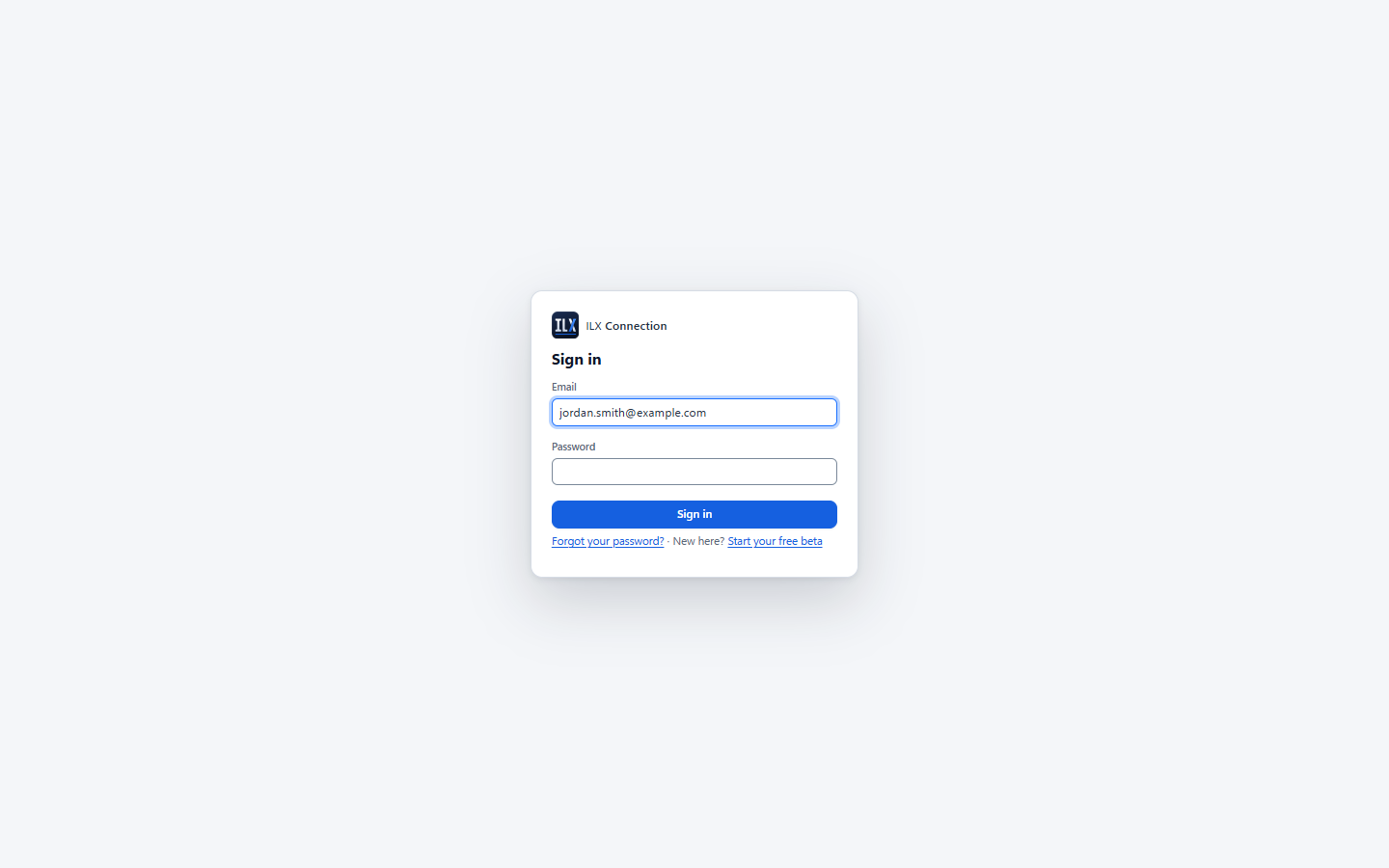
- Open ILX Connection, for example
https://connections.ilxstudio.com/webapp/. It runs in your browser; there is nothing to install. (The address without/webapp/opens the ILX Connection website, with a link to the app.) - Enter the Email and Password of your ILX account (below). New here? Select Start your free beta.
- Select Sign in.
Everyone signs in with an ILX account, administrators included; ILX Connection keeps no separate usernames or passwords. Your session stays open for 30 days from the last time you used it. To sign out, open the account menu in the header (your name) and choose Sign out.
Forgot your password? Select Forgot your password? on the sign-in page (see below). After repeated failed attempts, sign-in for that email is paused for 15 minutes.
Your ILX account (ilxconnection.com) #
On ilxconnection.com you sign in with an ILX account: your email address and a password. The same account will also work for the ILX Connection desktop application.
Start your free beta.
- On the website, select Start free beta.
- Enter your first and last name, your company (optional), your email address and a password (at least 8 characters, typed twice). Accept the Terms of Service and the Privacy Policy, then select Create account.
- We email you a 6-digit code. Enter it on the Confirm your email page. You are signed in and the app opens.
Your free beta lasts 90 days from the day you confirm your email, with every connection type, drawings and reports. No email? Check your spam folder; it can take a minute or two. To get a new code, sign up again with the same email. Your name and company start your title block (you can change them in Settings).
Sign in. Open the app, enter your Email and Password, and select Sign in. If you have not confirmed your email yet, the sign-in page links to the code page.
Forgot your password? Select Forgot your password? on the sign-in page, enter your email, and we email you a code. Enter it with your new password on the next page; you are signed in right after. The code is valid for 30 minutes.
Already used ILX Connection before your ILX account? Your account was moved for you: you receive a "Welcome to ILX Connection" email with a code to set your password (valid for 3 days; after that use Forgot your password?). Sign in with that email address and your projects are where you left them. If your projects were moved to another person's account instead, your administrator has told you so.
When your beta or subscription ends #
You can still sign in, open every project, and print or download the reports, drawing sheets, DXF files and project files of your saved connections. You cannot create or change designs until you subscribe. A banner at the top of the app says so, with a Subscribe button.
Subscribing and managing your subscription #
Subscribe (in the banner, or in the account menu during the beta) opens the Pricing page; choose Subscribe monthly or Subscribe yearly. Payment is made on a Stripe checkout page with the email address of your ILX account. Stripe sells the subscription as the merchant of record ("Sold through Link") and sends your receipt; your card details never reach ILX Studio. When you come back to ILX Connection it checks your license at once and shows "Your ILX Connection subscription is active"; if it takes longer, select Check again.
The account menu shows your license (for example "Free beta · 42 days left" or "Yearly subscription"). With a subscription it has Manage subscription, which opens the Stripe customer portal to cancel, switch between monthly and yearly, or change your card.
If ILX Connection cannot reach the ILX licensing service for a long time (more than 3 days), it also switches to read-only for safety, with a message that says so. Your work is never locked away; editing comes back as soon as the service answers again.
Administrators #
There is no administrator setup screen. The administrators are ILX accounts too: whoever runs the server lists their email addresses in the server setting ILX_ADMIN_EMAILS (see INSTALL.md, section 4), and they sign in like everyone else. An account whose email is on that list is an administrator from its next sign-in or page load; taking the email off the list makes it a user again. Administrators see Manage users… in the account menu and are never read-only.
When you sign in with no projects, ILX creates My first project with one connection, ST-1, so there is something to open.
A tour of the interface #
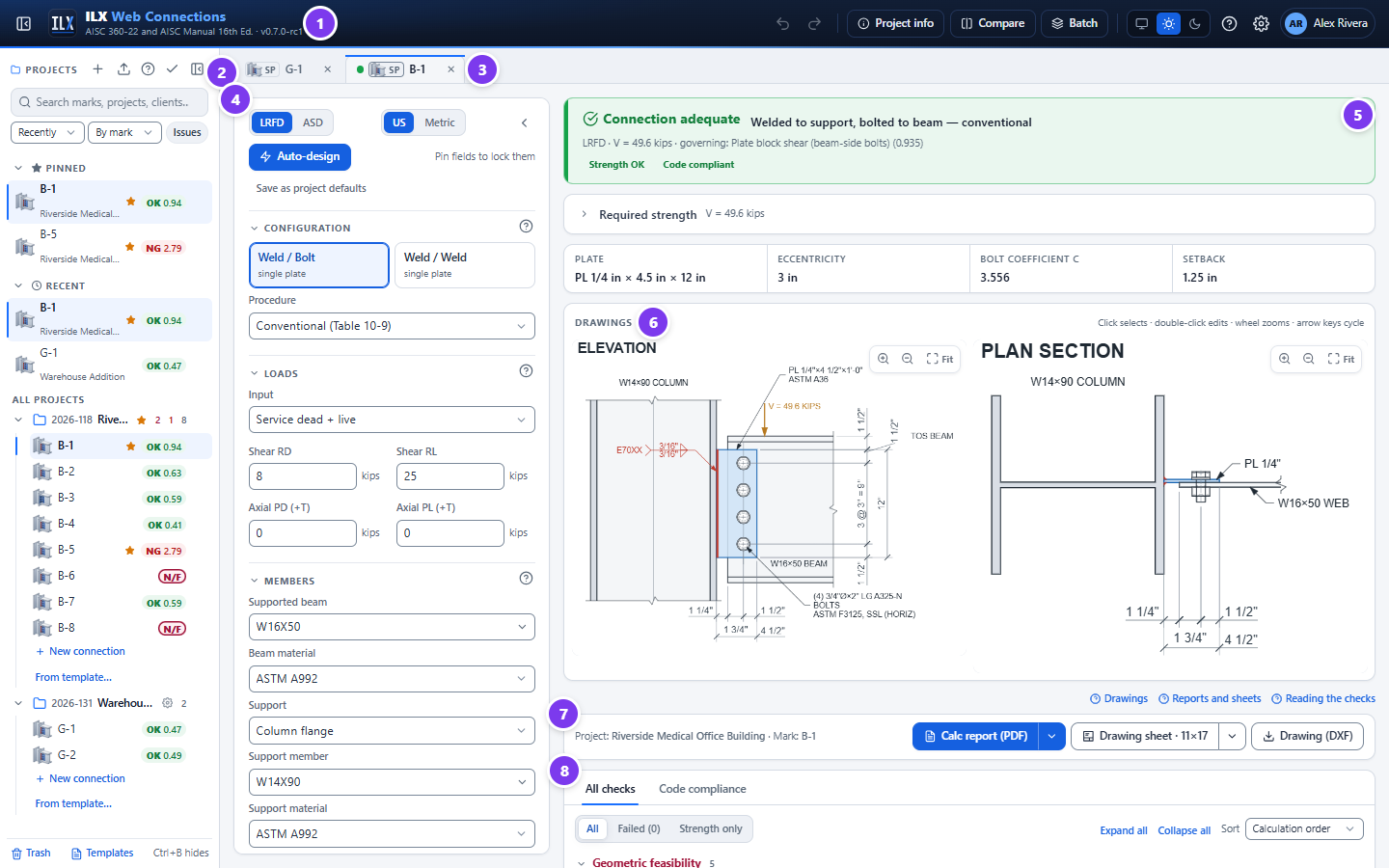
- Header. The application name, code basis and version, with the main commands (described below).
- Project panel. Your projects and their connections, with search, pinned and recent lists. See Projects and files.
- Tabs. One tab per open connection. The dot shows the live status (green adequate, red not adequate, a warning triangle for not feasible). ● means a change is waiting to be saved; saving… means it is being saved.
- Input panel. The connection inputs, in collapsible sections. See Designing a single-plate connection.
- Status bar. Adequate or not, the governing check and its ratio, and the counts of strength failures and code-compliance violations.
- Drawings. Elevation and plan views, drawn to scale. Click to select an element, double-click to edit it. See Drawings.
- Output bar. Calc report (PDF), drawing sheet (PDF) and drawing (DXF). See Reports.
- Results. All checks and Code compliance. See Checks and compliance.
The header #

- Show or hide the project panel (Ctrl+B).
- Undo and Redo for the active connection (Ctrl+Z, Ctrl+Y).
- Project info opens the project information of the active connection's project.
- Compare two open connections side by side. You need at least two tabs open.
- Batch opens batch design for the active project.
- Theme: System, Light or Dark.
- Help opens this manual (F1).
- Settings: title block and report settings, the Verification page and the user manual.
- Account menu: your profile and password, Manage users… (administrators) and Sign out.
The input panel toolbar #
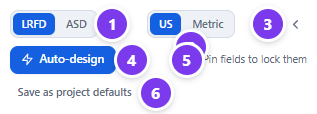
- LRFD / ASD sets the design method.
- US / Metric switches the units. Every length and force is converted, so the design is unchanged.
- Hide inputs collapses the input panel to a narrow rail. Select the rail to bring it back.
- Auto-design searches for an adequate design (see Auto-design).
- The number of pinned fields, which auto-design keeps.
- Save as project defaults stores this connection's materials, bolts, welds and methods as defaults for new connections in the project.
Entering values #
- Sections. Select a section title to collapse or expand it. ILX remembers which sections you collapsed.
- Fractions. US lengths accept fractions and feet-inches:
1 1/2,3/4,1-1/2or1'-2 1/2". The unit column shows the value as a fraction, for example1 1/2″. - Arrow keys. Up and Down step a length by 1/16 in (1 mm in metric) and a count by 1. Hold Shift for steps four times larger.
- Invalid values. Text that is not a valid number is never sent as zero. The field shows an error, and the last valid value comes back when you leave it.
- Autosave. ILX saves about one second after you stop typing. There is no Save button.
- Undo. Each tab keeps 100 undo steps.
Hiding the panels #
To give the drawings and results the full width, hide the project panel (Ctrl+B) and the input panel.
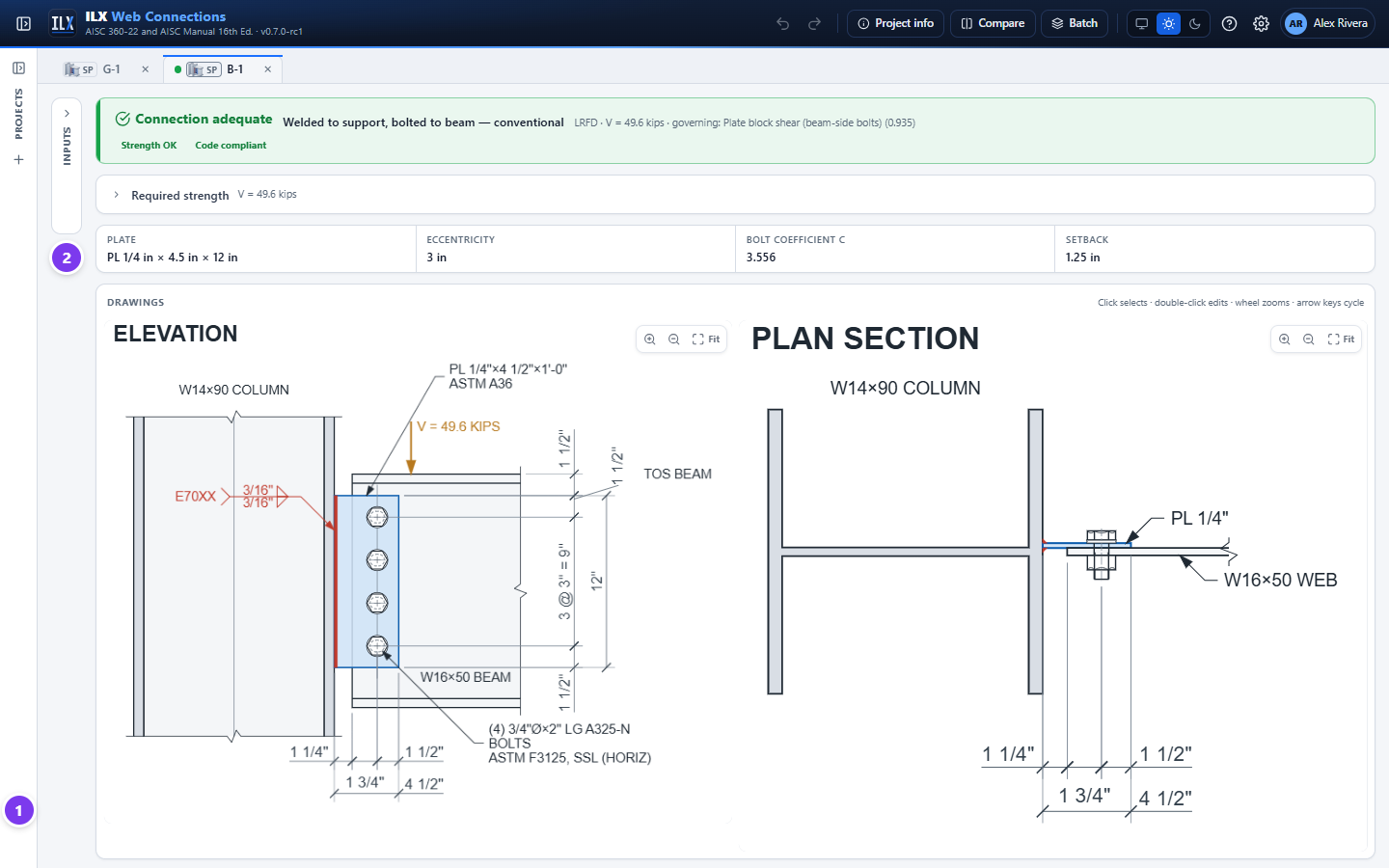
- The project panel rail: select it to show the panel again, or use + to create a project.
- The input panel rail: select Inputs to show the panel again.
Themes #

The theme switcher in the header has three options:
- System follows your operating system's light or dark setting.
- Light.
- Dark.
Your choice is saved to your account, so it follows you to other browsers.
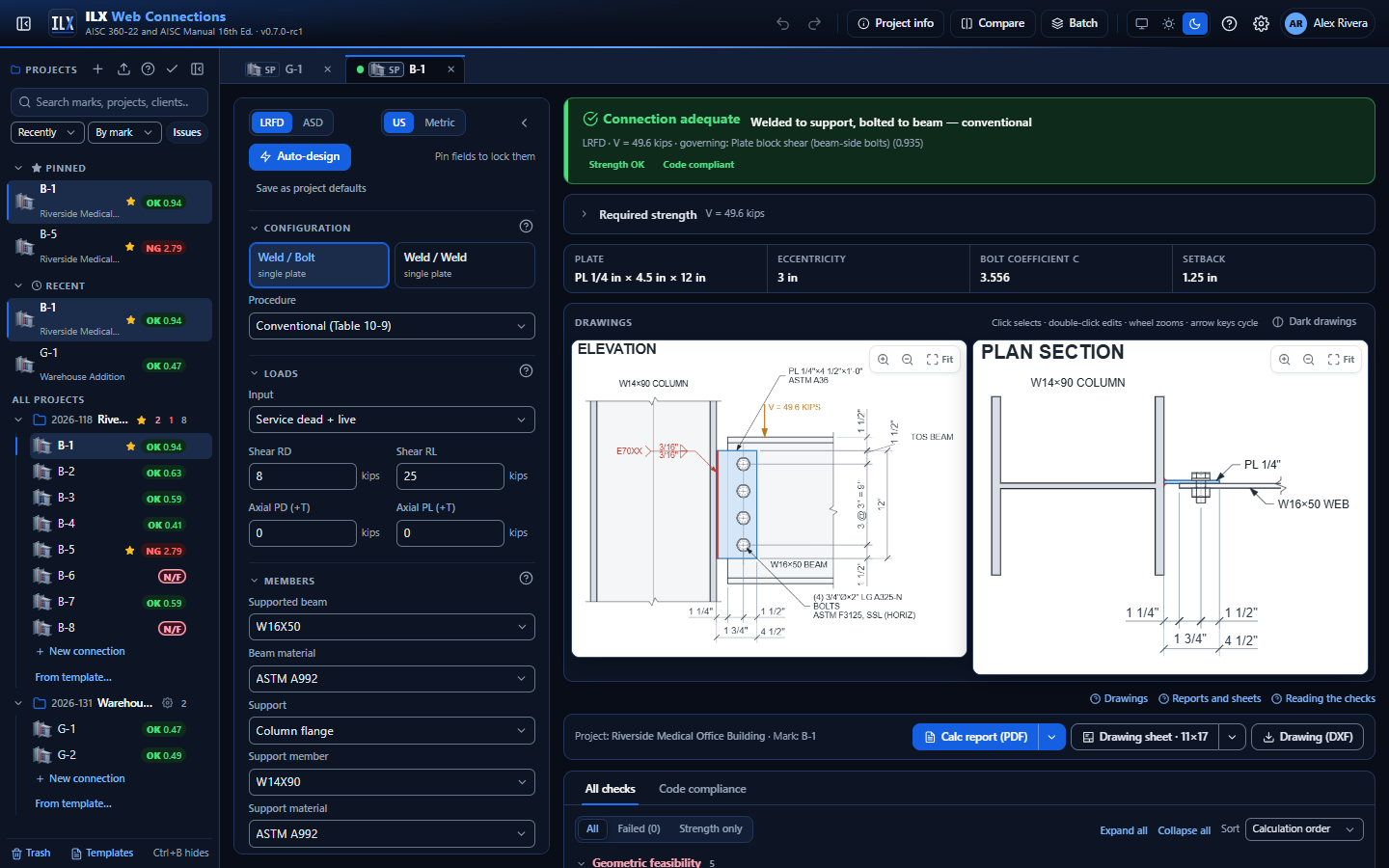
The drawings stay on white paper in the dark theme, so they look like the printed sheet. To draw them in light ink on navy instead, select Dark drawings in the drawings bar (see Dark drawings).
Getting help #
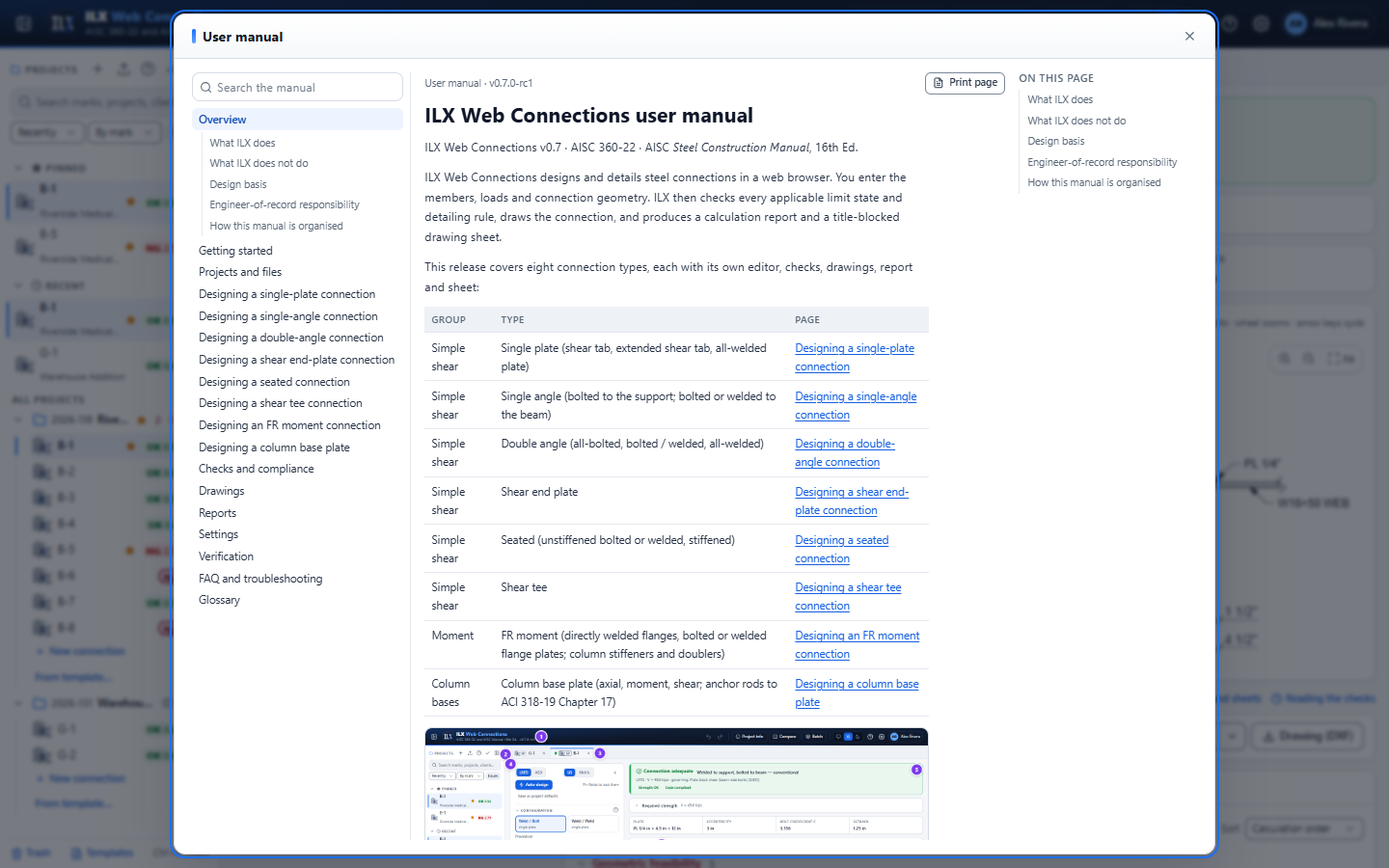
- The whole manual. Press F1 or select ? in the header. The manual opens in a window over your work; close it to carry on.
- Help for one section. A small ? at the right of an input section (Configuration, Loads, Members, Bolts, Plate, Welds), in the project panel and in Settings opens the manual at that topic.
- Help links. Under the drawings, the links Drawings, Reports and sheets and Reading the checks open the matching pages.
- Inside Settings. The manual is also on the User manual tab of Settings.
Keyboard reference #
| Where | Keys | Action |
|---|---|---|
| Anywhere | F1 | Open this manual |
| Anywhere | Ctrl+B | Show or hide the project panel |
| Editor | Ctrl+Z / Ctrl+Y (or Ctrl+Shift+Z) | Undo / redo |
| Number field | Up / Down (Shift for ×4) | Step the value |
| Tabs | Left / Right, Home / End | Move between open connections |
| Tabs | Delete | Close the focused tab |
| Project panel | Up / Down, Home / End | Move through the tree |
| Project panel | Right / Left | Expand / collapse a project |
| Project panel | Enter | Open the connection, or expand the project |
| Project panel | F2 | Rename |
| Project panel | Delete | Move to the trash |
| Project panel | Space, Ctrl+click, Ctrl+A | Select connections for bulk actions; Esc clears the selection |
| Project panel | Shift+F10 or the Menu key | Open the row's menu |
| Project panel | Type letters | Jump to the next matching row |
| Project panel search | Down | Move into the results; Esc clears the search |
| Drawings (panel focused) | Arrow keys or Tab | Select the next or previous element |
| Drawings | Enter | Edit the selected element |
| Drawings | Esc | Clear the selection |
| Element editor | Esc | Close |
Your first connection in five minutes #
- In the project panel, select + (New project), type a name and select Create. The Project information dialog opens. Fill in what you know, or select Skip for now.
- On the project row, open the menu (⋯) and choose New connection…. The wizard opens.
- Step 1, Joint: pick the joint type (for example Beam to column flange) and the connection (Shear tab). Select Next.
- Step 2, Members: check the mark (ST-1), and pick the Supported beam and the Column. Type to search the AISC shapes, for example
w16x50. Select Next. - Step 3, Loads: enter the service dead and live reactions, or choose Required strength and enter Ru (Ra in ASD). Tick Auto-design the connection if you want ILX to size the bolts, plate and weld. Select Create.
- The connection opens in a tab and designs itself. Read the status bar: Connection adequate or Connection not adequate, with the governing check.
- Change any input. The results, drawings and file-tree status update as you type.
- Select Calc report (PDF) or Drawing sheet in the output bar to produce the deliverables.